

Preview: CEMM update 1.16 (part 1)
In the upcoming CEMM update (version 1.16), we are once again adding a number of new features and improvements. In this first preview, we highlight four of them. You can set the order of the time series per meter and organize meters into groups. Additionally, the sustainability widget has been expanded and widgets are easier to find. More previews regarding the other changes in this update will follow in the near future.
Order and standard time series
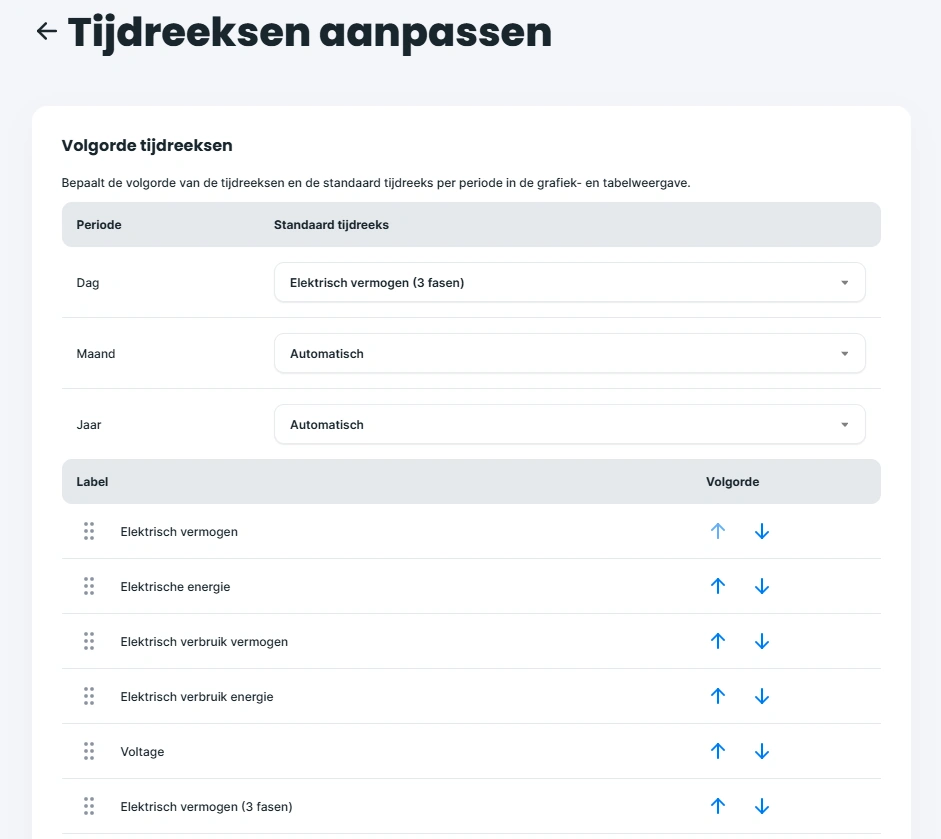
When viewing measurement data in a graph or table, you select a time series, such as energy, power, or costs. Until now, the order of these time series was fixed, and the CEMM automatically chose which time series to display first. With the next update, it will be possible to set this yourself per meter. In the meter settings, you arrange the time series in the desired order by dragging them. You also choose which time series opens by default for each period (day, month, year). If you leave the setting on "Automatic," it works as you are used to.
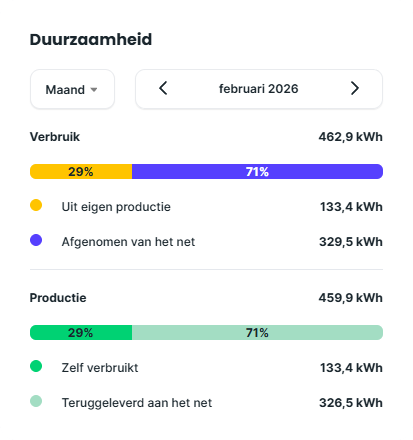
Sustainability widget with date selection
The sustainability widget shows what proportion of your consumption comes from self-generation and what proportion of your generation you consume yourself. Until now, the widget only showed the current period. Now, you select a day, month, or year within the widget itself, and use the arrows to browse to an earlier period.
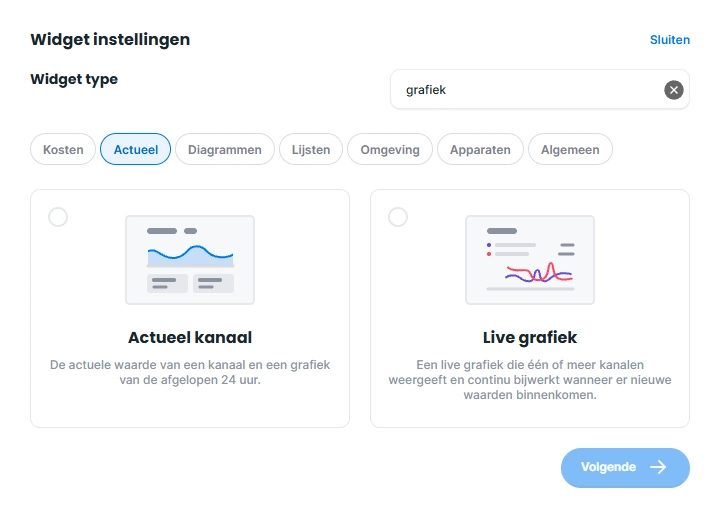
Search and filter widgets
The number of widgets has grown significantly in recent updates. Therefore, when adding a widget, you can now search by name/description and filter by category.
Meter groups
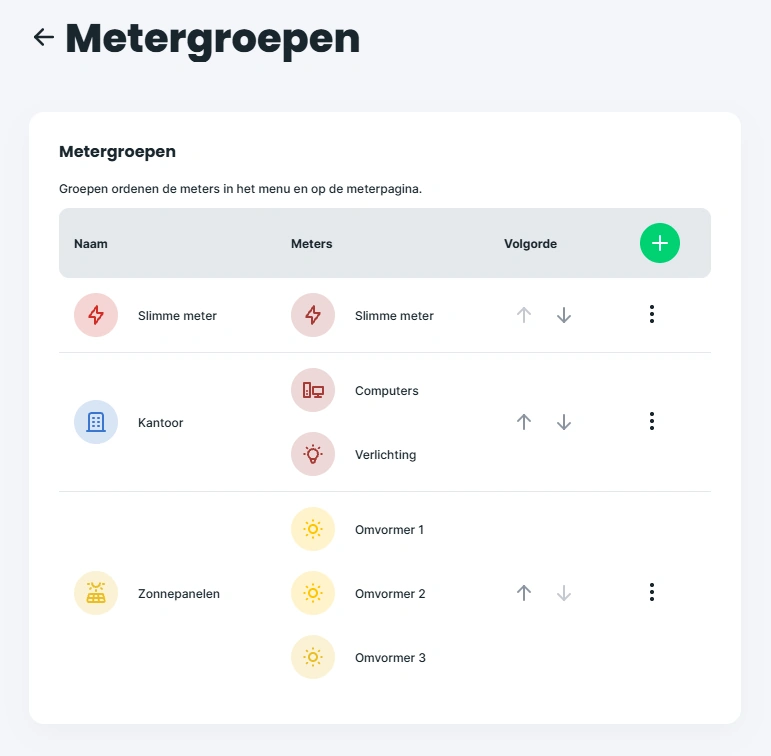
You use meter groups to categorize your meters, for example into "Solar Panels" and "Appliances", or into building sections. For each group, you set a name, icon, and color, and you determine the order of the groups and the meters within them yourself. A meter can be in multiple groups. In the menu and on the meters page, the meters are displayed per group. Meters that are not in any group are listed under "Other".
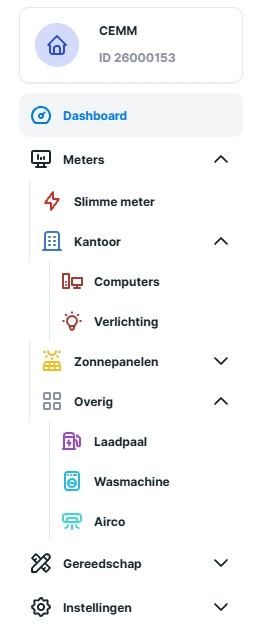
A group containing only one meter appears in the menu as a direct link to that meter. This allows you to place an important meter, such as your smart meter, at the top of the menu. You create groups under Settings > Meters > Groups. Groups do not affect the data or calculations; they are intended solely for display purposes.
We are currently finalizing the update and testing it internally. As soon as the new version is available, it will be automatically installed on your CEMM. Keep an eye on this website for new previews, the full changelog, and the release date of the update.