

ABB B21, B23 or B24
The ABB B21 (single-phase), B23 and B24 (three-phase) are kWh meters that the CEMM reads via Modbus. The B21 and B23 are direct-connected meters, and the B24 measures via current transformers. You can use them to measure a heat pump, charging point or solar panels, for example. Note: only the Modbus RTU versions (RS-485) of the B series work with the CEMM.
Installing the meter
- Have an electrician install the meter in the fuse box, in the circuit you want to measure.
- Are you measuring consumption or a battery? Then connect the grid side to the input of the meter and the output to the appliance side. Are you measuring production? Then it is the other way round: the input is on the inverter side and the output on the grid side.
- Are you using a B24? Then place the current transformers with the same current direction: P1 on the grid side and P2 on the appliance side, or the other way round for production. Make sure each current transformer is on the correct phase.
Setting up current transformers (B24 only)
The B24 needs to know which current transformers you are using, otherwise the measured energy will be wrong. Set the ratio of the current transformers (for example 100/5) in the settings menu of the meter. You can find the ratio on the current transformer itself.
Setting the Modbus address
Each device on the Modbus bus needs its own address. New ABB meters are set to address 1 by default. Are you connecting more than one Modbus device, such as a second meter or a Teracom TDI340? Then give each device a different address, for example 1, 2 and 3.
- Use the buttons on the meter to open the settings menu.
- Go to the communication settings (RS-485) and select the address.
- Use the arrow buttons to set an address that is not yet used on the bus, and confirm it.
- Exit the menu.
Make a note of the address. You will need it when adding the meter. Can't figure it out? Then consult the manual of the meter.
Baud rate and parity
All devices on the bus must use the same baud rate and parity. Preferably use 9600 baud without parity (9600 N). ABB meters are often set differently by default: check it in the same communication settings as the address and change it if necessary.
Do you use a different setting on the bus? That is fine, as long as all devices and the bus have the same setting. You can find the bus setting in the CEMM under Settings › Meters › Modbus RTU. Read more about the bus settings.
Connecting the bus
Connect the A and B terminals of the meter to the Modbus bus: A to A and B to B. How to connect a Modbus bus.
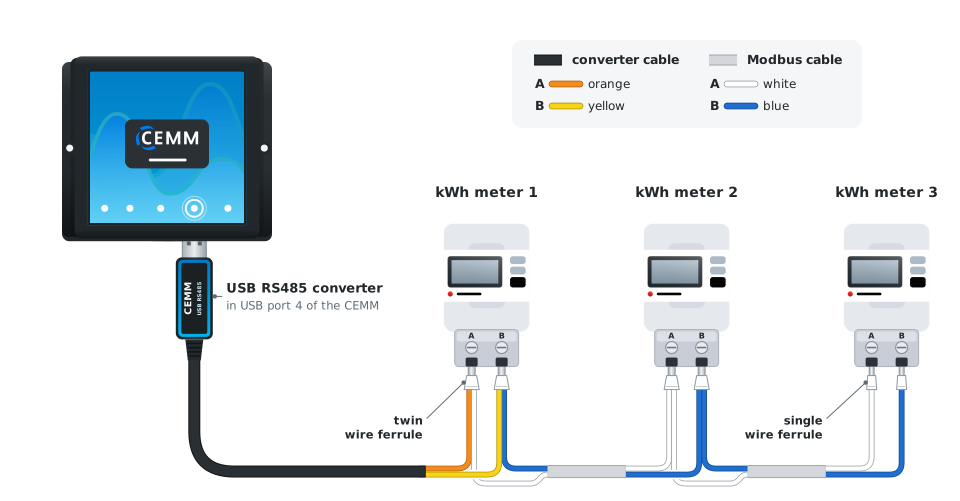
Adding the meter
- Activate the Modbus module with your activation code, if you have not done so already.
- In the portal or the app, go to Settings › Meters and click Add meter.
- Choose Modbus RTU meter and then your meter, for example ABB B21, ABB B23 or ABB B24.
- Enter the Modbus address you set on the meter.
- Complete the rest of the wizard.
Do you also want to log the voltage or power per phase? How to log extra data.
Problem?Consumption and export are reversed
The meter or a current transformer has been installed the wrong way round. If it is not (or no longer) possible to change the physical installation, you can reverse the direction in the CEMM: go to Settings › Meters, click Settings next to the meter and change the Measurement direction.
Problem?The B24 measures too much or too little
The ratio of the current transformers set in the meter is probably incorrect. Check the ratio on the current transformers and set it in the settings menu of the meter.
Problem?The CEMM cannot find the meter
- Check that you have a Modbus RTU version of the meter.
- Check that the address in the wizard matches the address on the meter.
- Check that no other device on the bus has the same address.
- Check that the meter uses the same baud rate and parity as the bus, for example 9600 N.
- Check that A is connected to A and B to B. More tips for the Modbus bus.
- Check that the Modbus module has been activated.
Still stuck? Contact support