

Pulse meter on the CEMM
You can connect up to three pulse meters or sensors to the CEMM. How you connect them depends on how many you have. Do you have more than three? Then use a Teracom TDI340.
Connecting
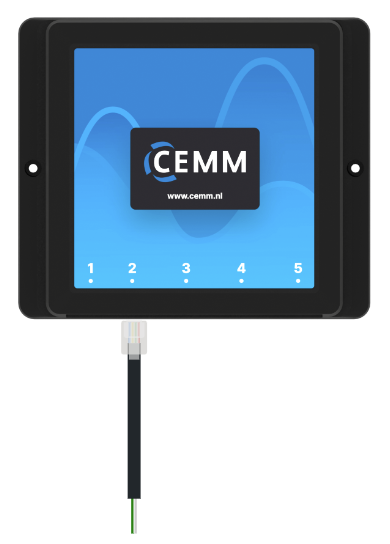
Your situationOne pulse meter
- Connect an S0 cable to the S0 output of the pulse meter.
- Connect the other end to port 2 of the CEMM.
Port 1 remains free for the P1 cable of your smart meter.
Your situationTwo pulse meters
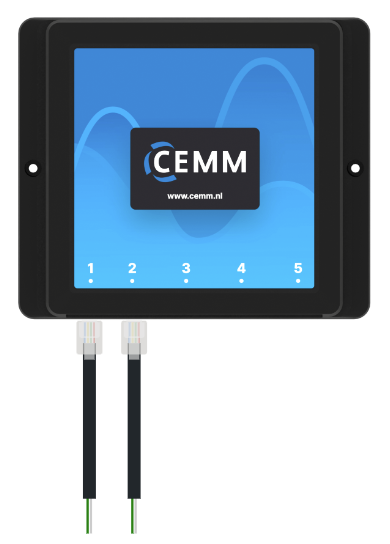
- Connect the first pulse meter to port 2 with an S0 cable.
- Connect the second pulse meter to port 1 with an S0 cable.
Are you also connecting a smart meter with the P1 cable? Then place an S0 splitter on port 1. The splitter divides port 1 into 1.1 and 1.2. Connect the P1 cable to 1.1 and the second pulse meter to 1.2.
Your situationThree pulse meters
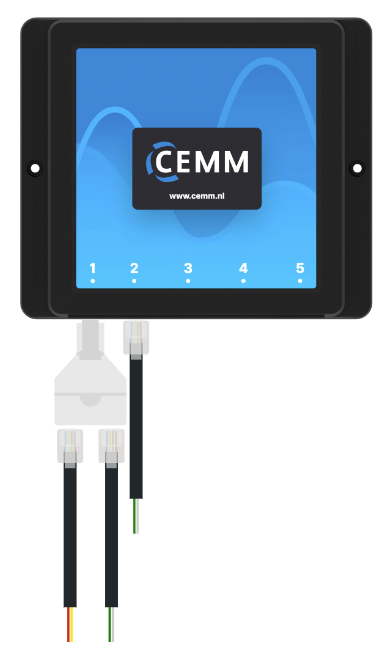
For this you need an S0 splitter, a red-yellow S0 cable and two regular S0 cables. The splitter divides port 1 into 1.1 and 1.2.
- Place the S0 splitter on port 1.
- Connect the first pulse meter to 1.1 with the red-yellow S0 cable.
- Connect the second pulse meter to 1.2 with a regular S0 cable.
- Connect the third pulse meter to port 2 with a regular S0 cable.
Always use the red-yellow cable on 1.1. It uses different wires in the plug than a regular S0 cable. With two regular cables on the splitter, both signals end up on the same wires and the signal does not reach 1.1.
Port 1 is now in use. So connect your smart meter with a P1-USB cable.
Adding the meter
- In the portal or the app, go to Settings › Meters and click Add meter.
- Choose Pulse meter or sensor.
- Choose the type of pulse meter (Electric usage, Solar Production, Gas, Water, etc.).
- Choose the port you connected the pulse meter to: Port 1 or Port 2, or 1.1 or 1.2 with an S0 splitter.
- Enter the pulse rate. You can find it on the meter, for example 1000 imp/kWh.
- Complete the rest of the wizard.
Repeat these steps for each pulse meter.
Setting the meter reading
A pulse meter only sends pulses, not a meter reading. Do you want the meter reading in the CEMM to match the one on the meter? Then enter the current meter reading by following these steps:
- Go to Settings › Meters and click Settings next to the pulse meter.
- Under Channels, find the channel for energy or volume and choose Configure pulse readings.
- Enter a date and time and the meter reading at that moment.
The CEMM uses this reading wherever it shows the meter reading of the pulse meter. It does not change the consumption.
Problem?I don't see any pulses coming in
- Check that the wires of the S0 cable are on the correct terminals of the meter: + and -.
- Check that you chose the port the meter is connected to in the wizard.
- Are you using an S0 splitter? Check that the red-yellow cable is on 1.1.
- A pulse meter only sends pulses when there is consumption. To test, switch on an appliance, for example.
Still stuck? Contact support